

Connections
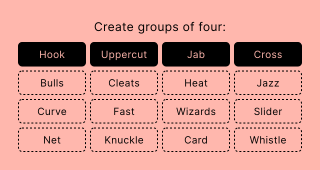
Engage your audience with a word puzzle. You hide three or four groups of related words (or images) in one shuffled grid, and your audience has to work out what the tiles have in common before they run out of mistakes. Connections is great for daily challenges, themed content, and leaderboard competitions.
Setup
- Click on ADD A BLOCK and select Connections.
- Enter a title and description, and add an image by clicking on Add image, GIF, or video/audio file (all optional).
- For each group, enter the category (the title revealed once the group is solved) and its words. The number of groups and words per group follows the Grid size option (4 x 4 by default).
- Optionally pick a colour pair per group by clicking on the colour icon next to the category. The contrast indicator shows the WCAG rating of your text and background colours, so your solved rows stay readable.
- Check the Grid preview below the groups. It shows the grid exactly as your audience will see it. Click on Reshuffle to draw a new order - the order is saved with the block, so every player sees the same grid.
Good to know: Each word has to be unique across the whole grid, however it is cased. Two tiles reading the same cannot be told apart.
Options
Click on the options icon on the right to configure the following settings.
Media
| Option | Description | Default |
|---|---|---|
| Show media | Toggle to show or hide the block's main image. | ON |
| Media ratio | Choose the aspect ratio: From settings, Wide 16:9, Square 1:1, Tall 3:4, or Original ratio. | From settings |
Points
| Option | Description | Default |
|---|---|---|
| Score | The points awarded for this block, handed out according to Scoring below. Used by connected leaderboards. | 1 |
Game settings
| Option | Description | Default |
|---|---|---|
| Grid size | Groups x words per group: 4 x 4, 3 x 4 or 3 x 3. Changing it adds or removes groups and words - you are warned before any text is lost. | 4 x 4 |
| Show images | Add an image to every word. Tiles show the image, with the word printed underneath. | OFF |
| Show labels | Only visible with Show images on. Switch it off to show the image only, without the word. | ON |
| Show labels after completion | Only visible with images on and labels off. Reveals the words in a solved group even though they were hidden during play. | ON |
| Scoring | Points for the whole board: the score is awarded once, only when all groups are solved. Points per category: the score is awarded for every solved group, so a half-solved board still earns half. | Points for the whole board |
| Mistakes allowed | Wrong guesses before the game ends (1-10), shown as hearts. | 4 |
| Show share button | Lets players copy their result grid - one row of coloured squares per guess - to the clipboard. | ON |
| Show "Almost there" hint | When a wrong guess has every tile but one from the same group, the feedback says "Almost there" instead of "Incorrect". The guess still costs a mistake. | ON |
Gameplay
- Your audience selects as many tiles as a group holds and clicks on Submit. Shuffle reorders the remaining tiles (the selection is kept), Clear resets the selection.
- A correct guess turns the tiles into a coloured row with the category title, stacked at the top of the grid. Solved rows are numbered by their position in your group list, not by the order they were found in.
- A wrong guess shakes the tiles and costs one heart. The selection stays, so players can swap a single tile and try again. With the "Almost there" hint on, a guess that is one tile off says so.
- The game ends when all groups are solved or the hearts are used up. On a loss, the unsolved groups are revealed below the solved ones.
- The result card shows the guess history as rows of coloured, numbered squares. With Show share button on, players can copy it as text, including a link to your page.
The block works with mouse, touch and keyboard: the arrow keys move between tiles, Enter or Space selects, and screen readers are told about selections, solved groups and remaining mistakes.
Scoring and leaderboards
The score is set in the block options (Score, default 1) and awarded according to Scoring: once for the whole board, or per solved category. Unused mistakes do not add points. Players who use up their mistakes score 0 with Points for the whole board, or the points of the groups they did solve with Points per category.
Connect your minigame to a leaderboard to rank players by their score. See Configure scoring for how minigame scores and the time multiplier work. Raise the default score of 1 first: a leaderboard ranking 0-and-1 results is not much of a ranking.