

Embed video and social media posts
Add a video or a social media post to any block of your Q without uploading a file: a clip as the question, a TikTok video on the result page, an Instagram post as the opener of a poll.
Use cases:
- TikTok video in a quiz result: show a TikTok clip on the result page as the answer or a reward.
- Instagram post as a poll opener: embed a post and ask your audience what they think of it.
Embed a YouTube or Vimeo video
- In your block, click on Add image, GIF, or video/audio file.
- Switch to the VIDEO/AUDIO tab of the media picker.
- Paste the URL of the YouTube or Vimeo video.
Embed a social media post
- In your block, click on Add image, GIF, or video/audio file.
- Switch to the SOCIAL tab of the media picker.
- Select X, TIKTOK or INSTAGRAM.
- Paste the URL of the post. For Instagram, the post must be public.
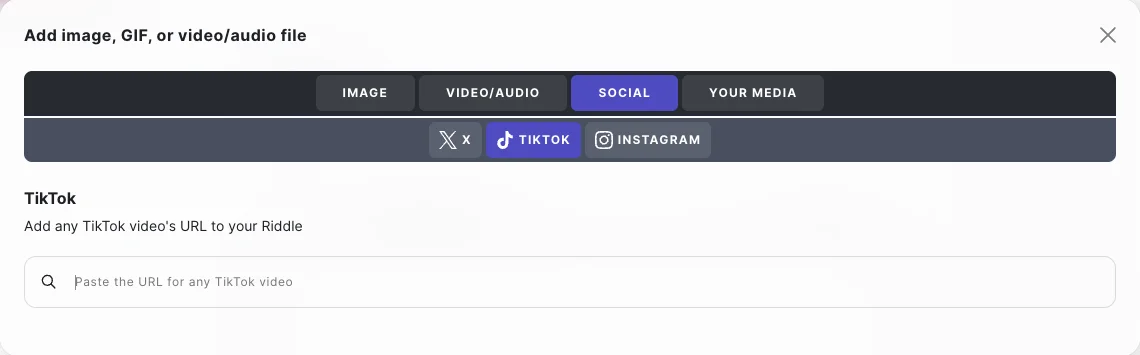
The post is shown in the block in place of an image. Embedded videos and posts load from the external platform.
To show a consent step before they load, enable Privacy opt-ins.
Next steps
- Security settings – add a consent step for embedded third-party content.
- Image sizes and ratios – the right dimensions for images and GIFs.
Table of Contents