

Navigate branching logic
Move blocks
- Drag and drop block to the new location.

- To include an entire branch of blocks, press Shift while dragging.

Copy blocks
- Hold the Control or Command key while dragging the block.
The original block will remain and a copy will be inserted in the new location.
- To include an entire branch of blocks, press Shift and Control / Command.

Zoom
- Hold Shift while scrolling up or down.

Reset/undo/redo logic
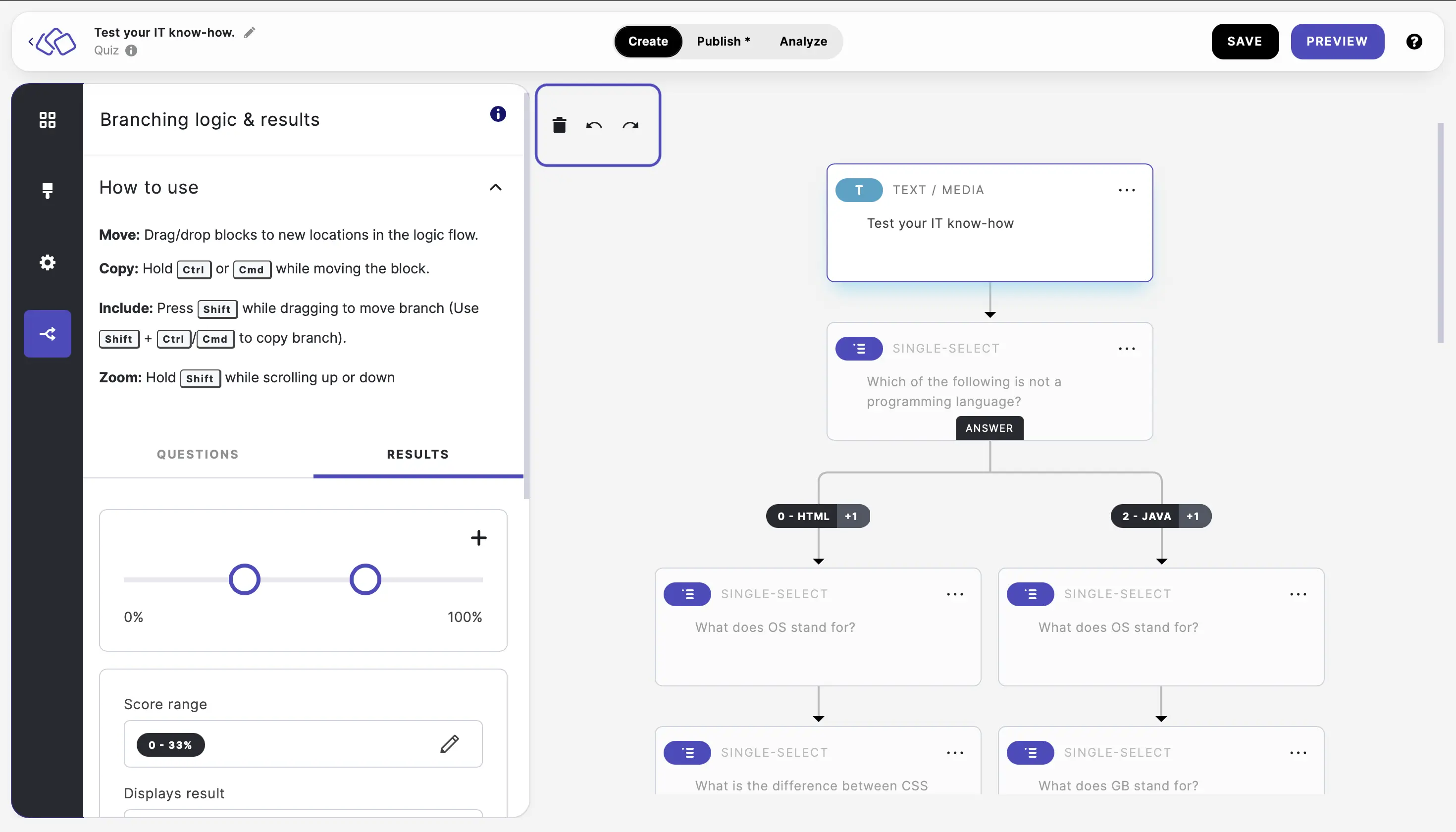
- Click on the trash can icon to delete the logic.
- Click on the back arrow icon to undo the last logic change.
- Click on the forward arrow icon to redo the last logic change.
Remove a block from the logic
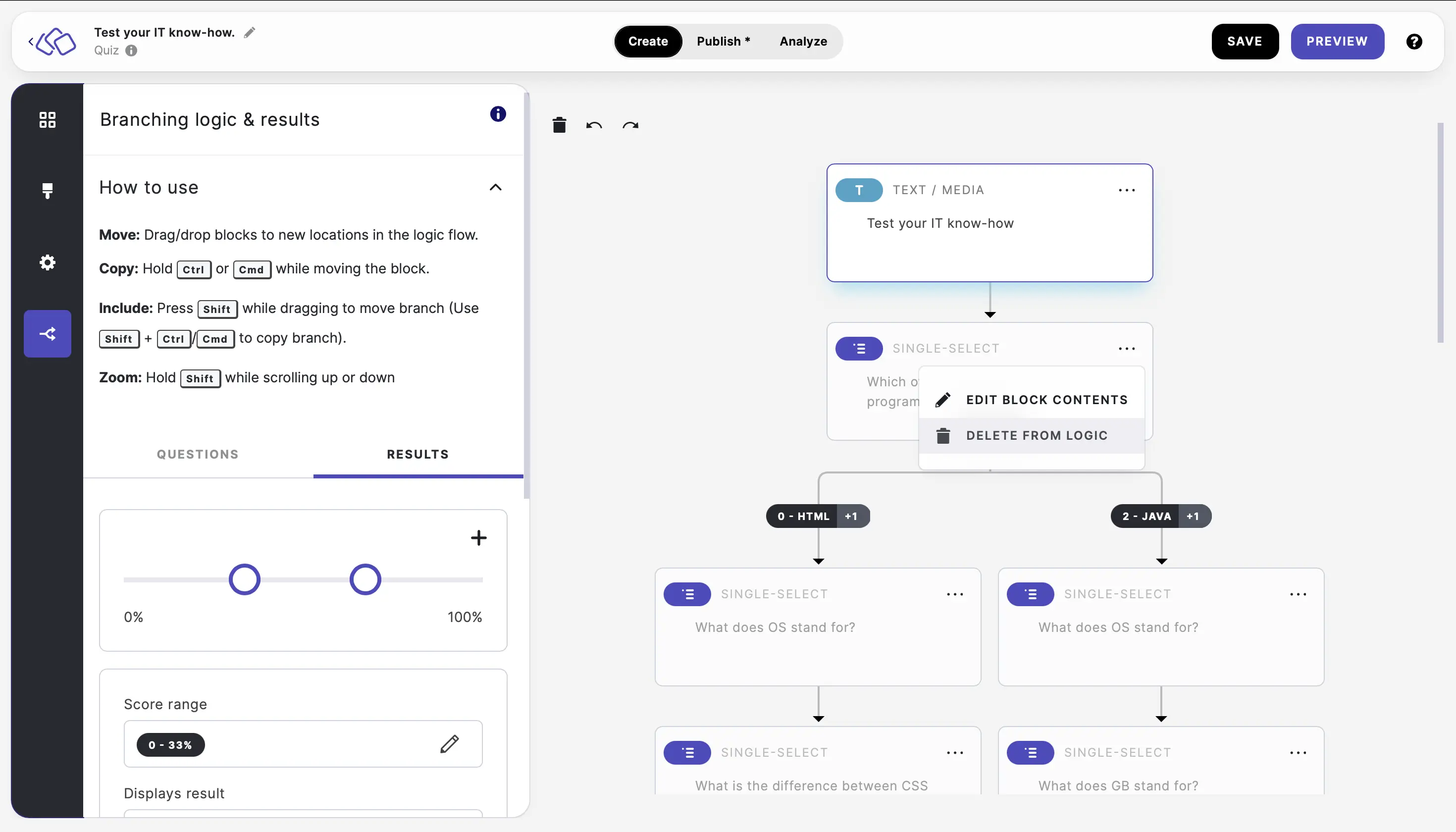
- Click on the block before the one you want to remove.
- Under Next block, select a later block or result, so the block in between is skipped.
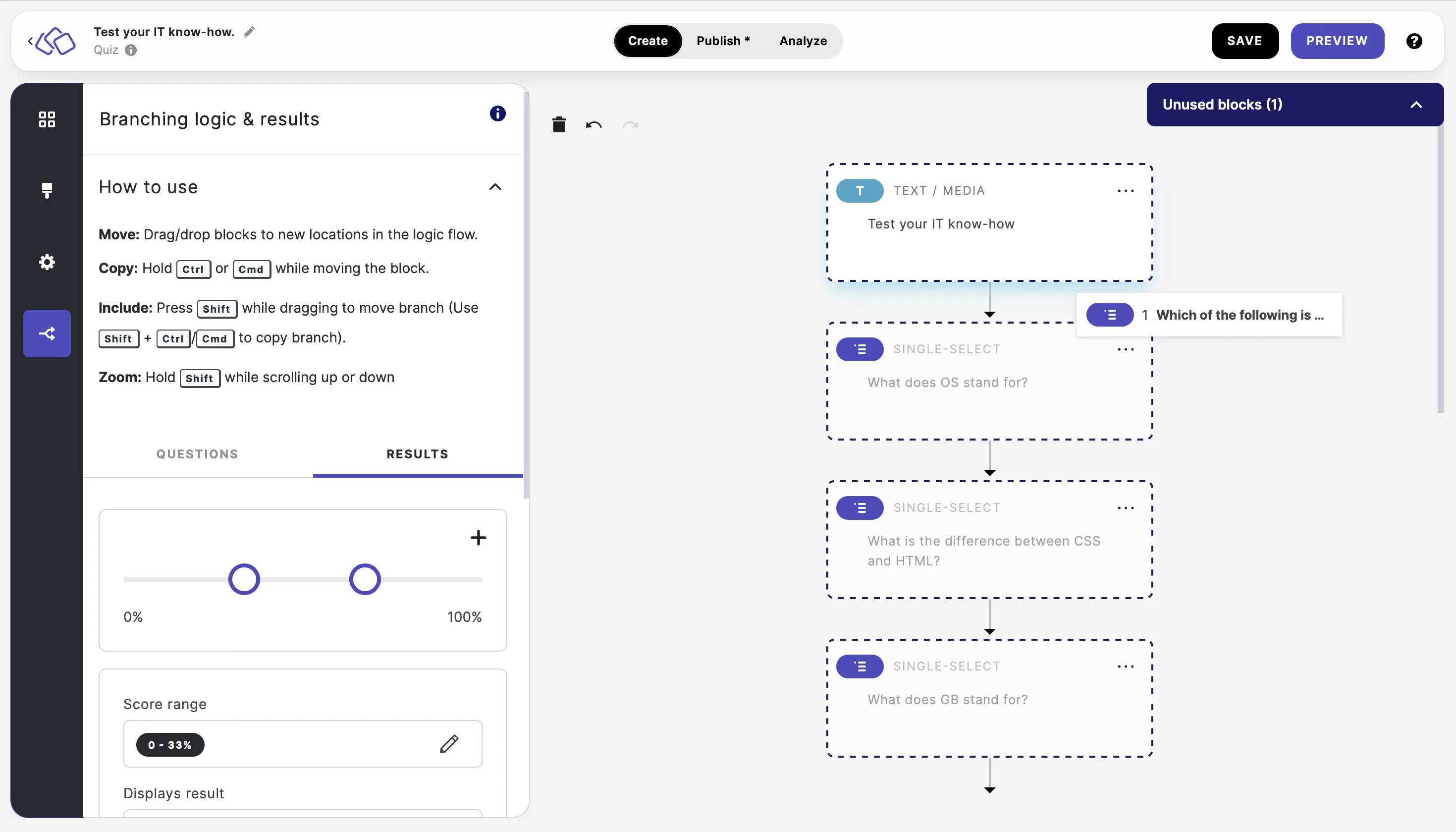
- The skipped block now appears under the Unused blocks list in the top right corner.
- To add the block back into the logic, click on the previous block and select the skipped block under Next block. It disappears from the Unused blocks list.
Good to know: if the email field you use as recipient of your email automation sits in a block under Unused blocks, you cannot publish. Connect the block again to fix it.